> ## Documentation Index
> Fetch the complete documentation index at: https://docs.bigdelta.com/llms.txt
> Use this file to discover all available pages before exploring further.
# Account revenue
> View MRR history, subscriptions, billing history, and transactions for any account.
## Overview
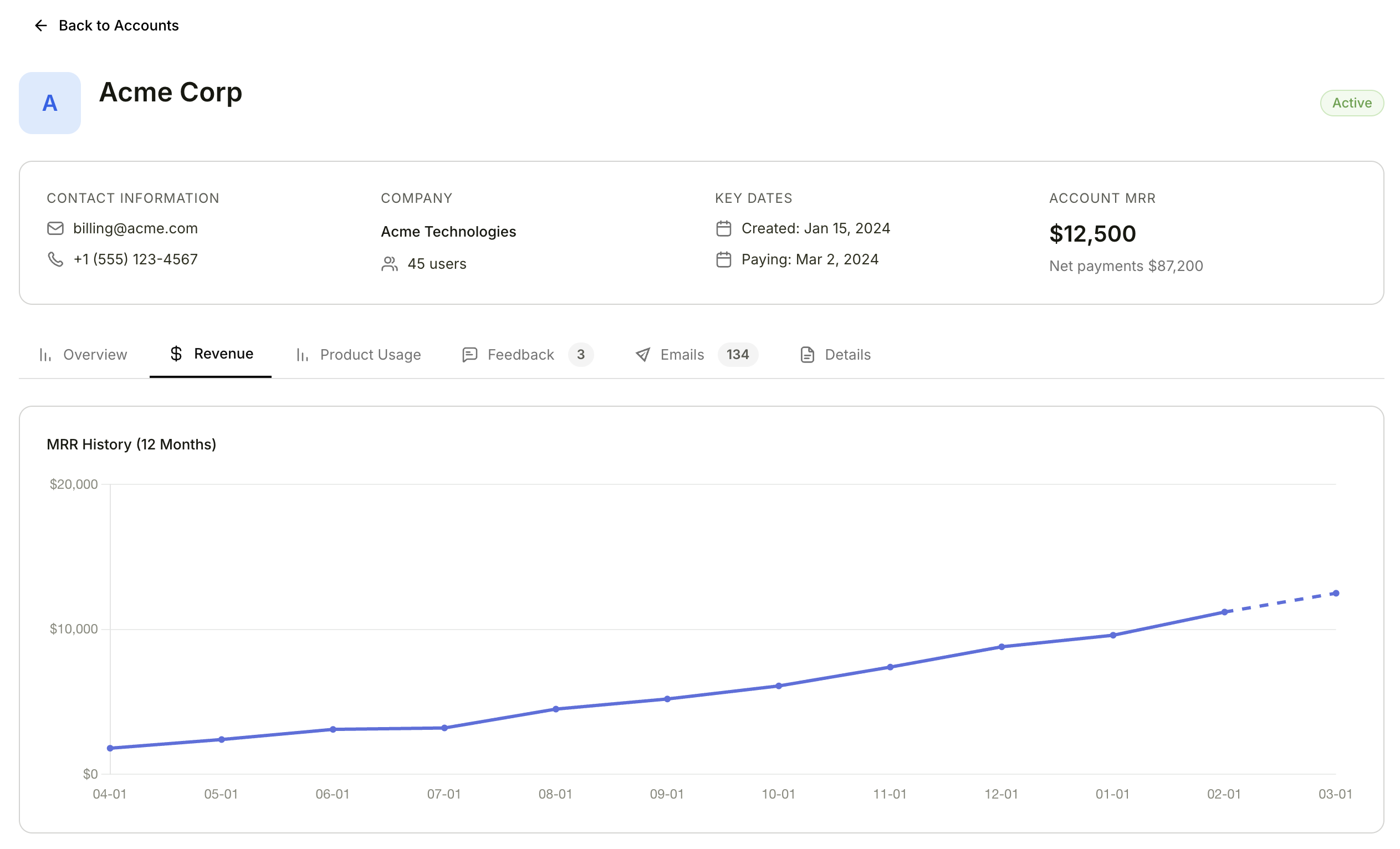
The Revenue tab on an account profile gives you a complete financial picture of that customer. It brings together subscription data, invoice history, and individual payment transactions in one place, so you can quickly assess an account's financial health.
To access the Revenue tab, open any account profile and click **Revenue**.
 All data on this tab comes from your connected payment provider (Stripe, PayPal, etc.). No manual data entry is required — everything syncs automatically as new payments and subscription changes occur.
***
## MRR History
A 12-month line chart showing how the account's Monthly Recurring Revenue has changed over time. Use this chart to quickly identify trends — whether the account is expanding, contracting, or holding steady.
Use the MRR History chart to assess whether an account is growing, stable, or declining before reaching out. A downward trend may signal dissatisfaction, while an upward trend could indicate readiness for a conversation about expanded plans.
***
## Subscriptions
A table of the account's active subscriptions. This tells you exactly what the customer is paying for and when their next billing cycle occurs.
| Column | Description |
| -------------------- | ------------------------------------------------------------ |
| **Plan** | The name of the subscription plan |
| **Status** | Current subscription status (e.g., Active, Cancelled) |
| **Billing Interval** | How often the subscription is billed (monthly, yearly, etc.) |
| **Start Date** | When the subscription began |
| **Next Billing** | The date of the next scheduled payment |
| **MRR** | Monthly Recurring Revenue contributed by this subscription |
| **Amount** | The billed amount per interval |
***
## Billing History
A paginated table of the account's invoice history, showing 5 invoices per page.
| Column | Description |
| ------------------ | ----------------------------------------- |
| **Invoice number** | The unique identifier for the invoice |
| **Date** | When the invoice was issued |
| **Description** | A summary of what the invoice covers |
| **Status** | Payment status — Paid, Pending, or Failed |
| **Amount** | The total invoice amount |
Invoices with a Failed status indicate payment issues. Check the Transactions section below for more details on what went wrong, and consider reaching out to the customer to resolve billing problems.
***
## Transactions
A table of individual payment transactions for the account.
| Column | Description |
| ------------------ | ------------------------------------------------ |
| **Name** | The type of transaction (Charge or Refund) |
| **Date** | When the transaction occurred |
| **Transaction ID** | The unique identifier from your payment provider |
| **Status** | Transaction result — Succeeded or Failed |
| **Amount** | The transaction amount |
***
## How data flows into the Revenue tab
All financial data on this tab is synced automatically from your connected payment provider.
Link your Stripe, PayPal, or other supported payment provider in your workspace integrations settings.
Subscriptions, invoices, and transactions are imported and kept up to date automatically.
Open any account profile and navigate to the Revenue tab to see the full financial picture.
Combine the Revenue tab with [Revenue Stages](/features/revenue-stages) for a complete financial monitoring workflow. Revenue Stages categorize accounts by payment status, and the Revenue tab gives you the details when you need to dig deeper.
All data on this tab comes from your connected payment provider (Stripe, PayPal, etc.). No manual data entry is required — everything syncs automatically as new payments and subscription changes occur.
***
## MRR History
A 12-month line chart showing how the account's Monthly Recurring Revenue has changed over time. Use this chart to quickly identify trends — whether the account is expanding, contracting, or holding steady.
Use the MRR History chart to assess whether an account is growing, stable, or declining before reaching out. A downward trend may signal dissatisfaction, while an upward trend could indicate readiness for a conversation about expanded plans.
***
## Subscriptions
A table of the account's active subscriptions. This tells you exactly what the customer is paying for and when their next billing cycle occurs.
| Column | Description |
| -------------------- | ------------------------------------------------------------ |
| **Plan** | The name of the subscription plan |
| **Status** | Current subscription status (e.g., Active, Cancelled) |
| **Billing Interval** | How often the subscription is billed (monthly, yearly, etc.) |
| **Start Date** | When the subscription began |
| **Next Billing** | The date of the next scheduled payment |
| **MRR** | Monthly Recurring Revenue contributed by this subscription |
| **Amount** | The billed amount per interval |
***
## Billing History
A paginated table of the account's invoice history, showing 5 invoices per page.
| Column | Description |
| ------------------ | ----------------------------------------- |
| **Invoice number** | The unique identifier for the invoice |
| **Date** | When the invoice was issued |
| **Description** | A summary of what the invoice covers |
| **Status** | Payment status — Paid, Pending, or Failed |
| **Amount** | The total invoice amount |
Invoices with a Failed status indicate payment issues. Check the Transactions section below for more details on what went wrong, and consider reaching out to the customer to resolve billing problems.
***
## Transactions
A table of individual payment transactions for the account.
| Column | Description |
| ------------------ | ------------------------------------------------ |
| **Name** | The type of transaction (Charge or Refund) |
| **Date** | When the transaction occurred |
| **Transaction ID** | The unique identifier from your payment provider |
| **Status** | Transaction result — Succeeded or Failed |
| **Amount** | The transaction amount |
***
## How data flows into the Revenue tab
All financial data on this tab is synced automatically from your connected payment provider.
Link your Stripe, PayPal, or other supported payment provider in your workspace integrations settings.
Subscriptions, invoices, and transactions are imported and kept up to date automatically.
Open any account profile and navigate to the Revenue tab to see the full financial picture.
Combine the Revenue tab with [Revenue Stages](/features/revenue-stages) for a complete financial monitoring workflow. Revenue Stages categorize accounts by payment status, and the Revenue tab gives you the details when you need to dig deeper.