> ## Documentation Index
> Fetch the complete documentation index at: https://docs.bigdelta.com/llms.txt
> Use this file to discover all available pages before exploring further.
# Moments
> Create automated playbooks that respond to customer behavior with emails, Slack messages, tasks, and more.
## What are moments?
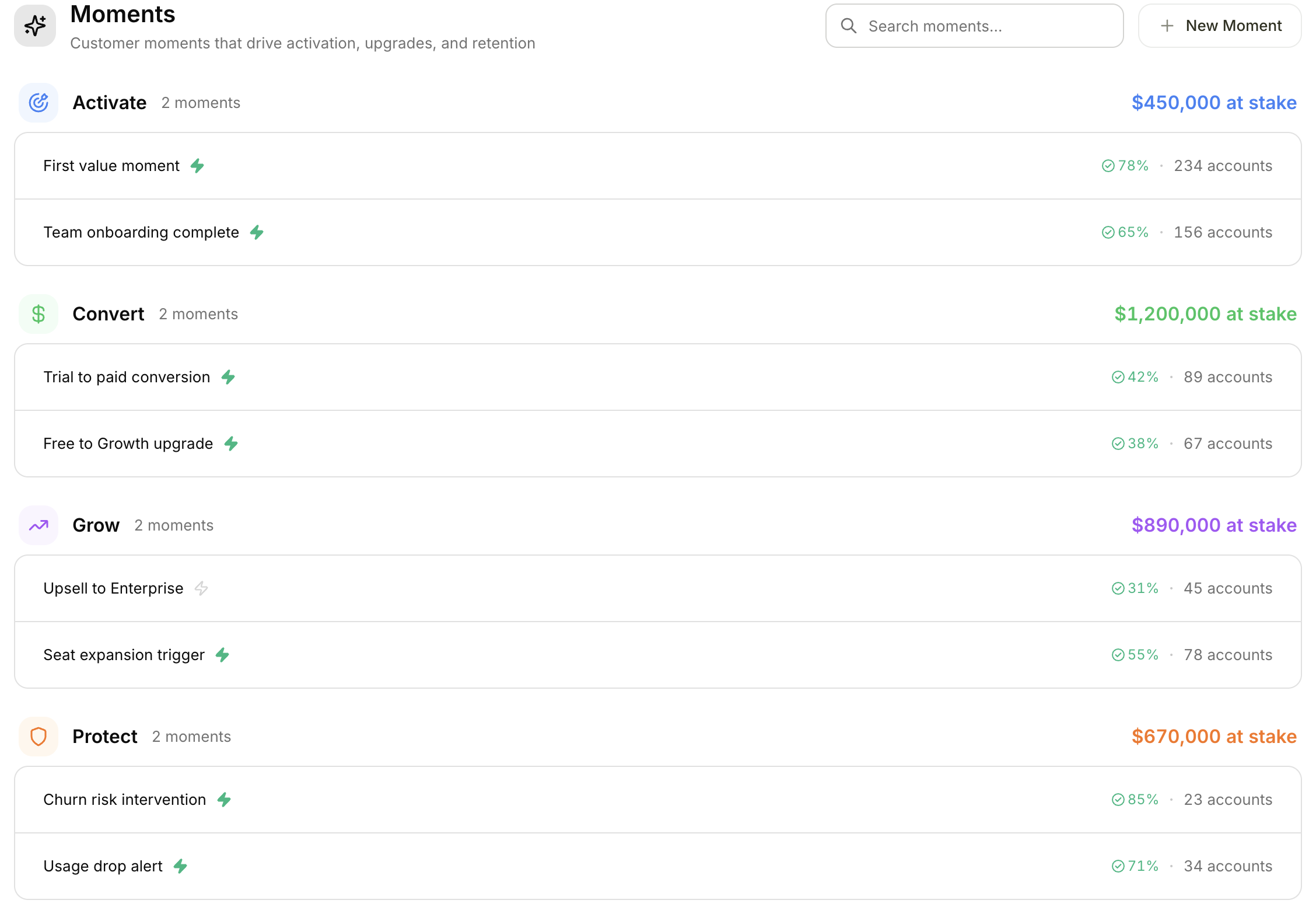 Moments are automated playbooks for your team. When a customer does something important — like showing signs of leaving or completing a trial — a moment kicks in and automatically takes action. It might send an email, alert your team on Slack, or create a task. Moments help you respond to customer behaviors at scale without manual effort.
***
## Moment goals
Each moment is categorized by its goal, which describes what you are trying to achieve:
| Goal | Purpose |
| ------------ | ---------------------------------- |
| **Activate** | Onboard and activate new customers |
| **Convert** | Drive upgrades and conversions |
| **Grow** | Expand account value |
| **Recover** | Re-engage lapsed customers |
| **Other** | Custom use cases |
***
## Viewing moments
1. Click **Moments** in the top navigation
2. Browse moments grouped by goal
3. Each moment shows its name, action status, exit outcomes (success vs. failed percentages), and the number of affected accounts
4. Use the **search bar** to find specific moments
***
## Creating a moment
Open the Moments page and click the **New Moment** button.
Give your moment a clear name that describes what it does (e.g., "Trial expiration follow-up").
Choose from Activate, Convert, Grow, Recover, or Other.
Select the data source for this moment: Product usage, Revenue, or Product + Revenue.
***
## Configuring moment rules
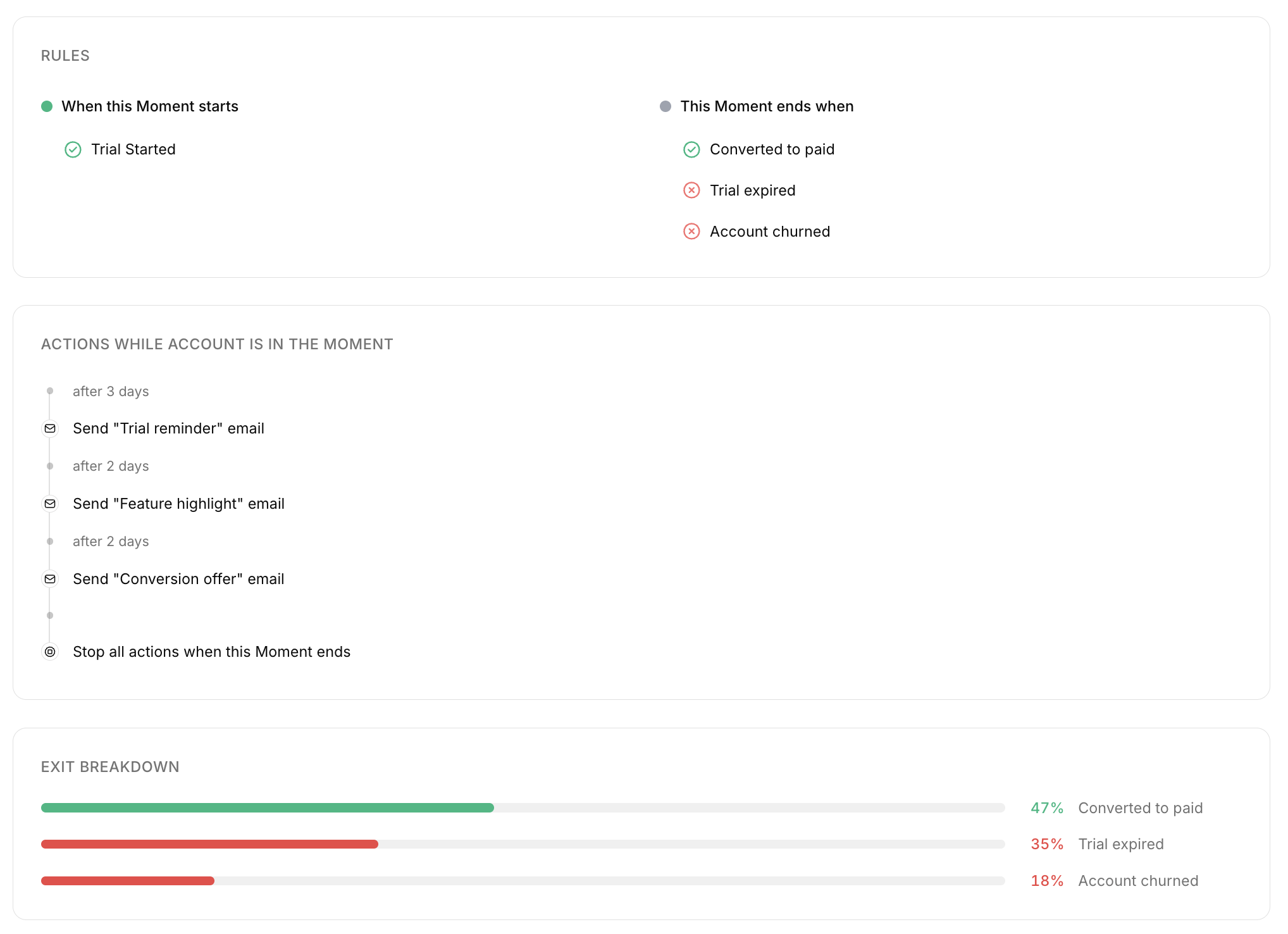
Moment rules define when a moment starts and when it ends. This determines which accounts enter the moment and how success or failure is measured.
### Start rule
The start rule defines when the moment begins for an account.
1. In the moment detail page, find the **When this Moment starts** section
2. Choose an activity trigger (e.g., "Trial Ending Soon" or "Payment Failed")
3. Optionally add filters to narrow which accounts qualify
**Example:** Start this moment when a customer's trial is about to end. You could add a filter so it only applies to accounts on a specific plan.
### End rules
End rules define when the moment completes for an account.
1. Find the **This Moment ends when** section
2. Add one or more end conditions
3. Tag each end condition as a **Success** or **Failed** outcome
**Example:** A moment could end successfully when the customer upgrades to a paid plan, and end as failed if the trial expires without an upgrade. You can have multiple end conditions for each outcome type.
Moments are automated playbooks for your team. When a customer does something important — like showing signs of leaving or completing a trial — a moment kicks in and automatically takes action. It might send an email, alert your team on Slack, or create a task. Moments help you respond to customer behaviors at scale without manual effort.
***
## Moment goals
Each moment is categorized by its goal, which describes what you are trying to achieve:
| Goal | Purpose |
| ------------ | ---------------------------------- |
| **Activate** | Onboard and activate new customers |
| **Convert** | Drive upgrades and conversions |
| **Grow** | Expand account value |
| **Recover** | Re-engage lapsed customers |
| **Other** | Custom use cases |
***
## Viewing moments
1. Click **Moments** in the top navigation
2. Browse moments grouped by goal
3. Each moment shows its name, action status, exit outcomes (success vs. failed percentages), and the number of affected accounts
4. Use the **search bar** to find specific moments
***
## Creating a moment
Open the Moments page and click the **New Moment** button.
Give your moment a clear name that describes what it does (e.g., "Trial expiration follow-up").
Choose from Activate, Convert, Grow, Recover, or Other.
Select the data source for this moment: Product usage, Revenue, or Product + Revenue.
***
## Configuring moment rules
Moment rules define when a moment starts and when it ends. This determines which accounts enter the moment and how success or failure is measured.
### Start rule
The start rule defines when the moment begins for an account.
1. In the moment detail page, find the **When this Moment starts** section
2. Choose an activity trigger (e.g., "Trial Ending Soon" or "Payment Failed")
3. Optionally add filters to narrow which accounts qualify
**Example:** Start this moment when a customer's trial is about to end. You could add a filter so it only applies to accounts on a specific plan.
### End rules
End rules define when the moment completes for an account.
1. Find the **This Moment ends when** section
2. Add one or more end conditions
3. Tag each end condition as a **Success** or **Failed** outcome
**Example:** A moment could end successfully when the customer upgrades to a paid plan, and end as failed if the trial expires without an upgrade. You can have multiple end conditions for each outcome type.
 ***
## Adding action steps
Steps define what happens during a moment. They are the automated actions that run when an account enters the moment.
1. Click **Add Step** in the Steps section
2. Choose an action type from the table below
3. Configure the action details (template, recipient, channel, etc.)
4. Set an optional **delay** before the action executes (minutes, hours, or days)
### Action types
| Action | What it does |
| ---------------------- | ----------------------------------------------------------------------------------------- |
| **Send Email** | Sends an email using a template with personalized variables |
| **Send Notification** | Sends an in-app notification |
| **Send Slack Message** | Posts a message to a Slack channel |
| **Create Attio Task** | Creates a task in Attio CRM with a deadline |
| **Send Webhook** | Calls an external URL (supports GET, POST, PUT, DELETE, PATCH, HEAD, and OPTIONS methods) |
Steps run in order from top to bottom. You can drag and drop steps to reorder them. Use delays between steps to space out your outreach — for example, send an email immediately, then follow up with a Slack message 2 days later.
***
## Managing moments
Once a moment is created, you can manage it in several ways:
* **Enable or disable actions** — Toggle the actions switch to start or pause a moment's automated actions
* **Duplicate** — Create a copy of a moment with all its rules and steps, which is useful for creating variations
* **Delete** — Permanently remove a moment
Deleting a moment is permanent and cannot be undone. Consider disabling it first if you might want to reuse it later.
***
## Viewing affected accounts
Click the **account count** on any moment to see which accounts are currently in that moment. This helps you understand how many customers are being engaged by each playbook and monitor progress in real time.
***
## Related features
* **[Emails](/guide/communication/emails)** are used as action steps within moments. Create email templates first, then add them as steps in your moment workflow.
* **[Revenue Stages](/guide/features/revenue-stages)** and **[Product Stages](/guide/features/product-stages)** provide the account context that powers moment rules and triggers.
* **[Slack](/guide/integrations/slack)**, **[Attio](/guide/integrations/attio)**, and **[Webhooks](/guide/integrations/webhooks)** can be used as action types within moment steps.
***
## Adding action steps
Steps define what happens during a moment. They are the automated actions that run when an account enters the moment.
1. Click **Add Step** in the Steps section
2. Choose an action type from the table below
3. Configure the action details (template, recipient, channel, etc.)
4. Set an optional **delay** before the action executes (minutes, hours, or days)
### Action types
| Action | What it does |
| ---------------------- | ----------------------------------------------------------------------------------------- |
| **Send Email** | Sends an email using a template with personalized variables |
| **Send Notification** | Sends an in-app notification |
| **Send Slack Message** | Posts a message to a Slack channel |
| **Create Attio Task** | Creates a task in Attio CRM with a deadline |
| **Send Webhook** | Calls an external URL (supports GET, POST, PUT, DELETE, PATCH, HEAD, and OPTIONS methods) |
Steps run in order from top to bottom. You can drag and drop steps to reorder them. Use delays between steps to space out your outreach — for example, send an email immediately, then follow up with a Slack message 2 days later.
***
## Managing moments
Once a moment is created, you can manage it in several ways:
* **Enable or disable actions** — Toggle the actions switch to start or pause a moment's automated actions
* **Duplicate** — Create a copy of a moment with all its rules and steps, which is useful for creating variations
* **Delete** — Permanently remove a moment
Deleting a moment is permanent and cannot be undone. Consider disabling it first if you might want to reuse it later.
***
## Viewing affected accounts
Click the **account count** on any moment to see which accounts are currently in that moment. This helps you understand how many customers are being engaged by each playbook and monitor progress in real time.
***
## Related features
* **[Emails](/guide/communication/emails)** are used as action steps within moments. Create email templates first, then add them as steps in your moment workflow.
* **[Revenue Stages](/guide/features/revenue-stages)** and **[Product Stages](/guide/features/product-stages)** provide the account context that powers moment rules and triggers.
* **[Slack](/guide/integrations/slack)**, **[Attio](/guide/integrations/attio)**, and **[Webhooks](/guide/integrations/webhooks)** can be used as action types within moment steps.