> ## Documentation Index
> Fetch the complete documentation index at: https://docs.bigdelta.com/llms.txt
> Use this file to discover all available pages before exploring further.
# Revenue Stages
> Understand how Bigdelta categorizes your customers by their payment status.
## What are Revenue Stages?
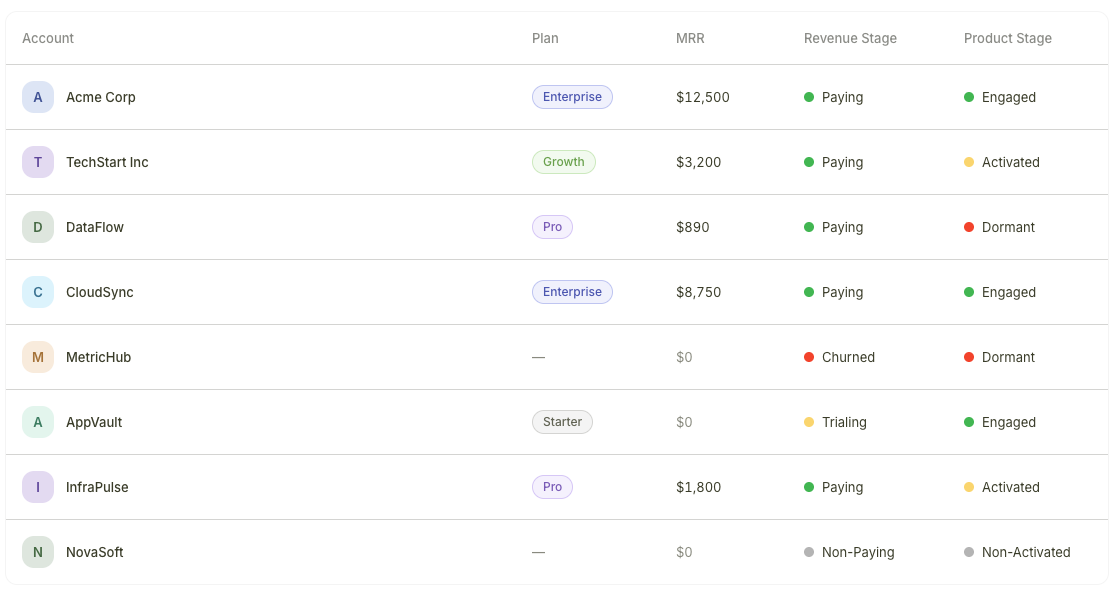 Revenue Stages are labels automatically assigned to each account based on billing data from your connected payment provider. They give you an instant understanding of where each customer stands financially — whether they are actively paying, trying out your product, or at risk of being lost.
No manual setup is required. Once you connect a payment provider like Stripe or PayPal, Revenue Stages are assigned and updated automatically.
***
## The four Revenue Stages
| Stage | Meaning |
| -------------- | ----------------------------------------------------------------------------------------------------------------------- |
| **Paying** | The account has an active paid subscription and is generating recurring revenue |
| **Trialing** | The account is on a free trial period and has not yet converted to a paid plan |
| **Non-Paying** | The account exists but has no active subscription or trial (e.g., free plan users, expired trials that did not convert) |
| **Churned** | The account previously had a paid subscription but has since cancelled |
***
## How Revenue Stages are assigned
Revenue Stages are derived entirely from your billing data. As billing events occur, stages update automatically:
* A new subscription is created — the account moves to **Paying**
* A trial begins — the account moves to **Trialing**
* A trial expires without conversion — the account moves to **Non-Paying**
* A paid subscription is cancelled — the account moves to **Churned**
You do not need to configure or manually assign Revenue Stages. They are calculated automatically from the data synced by your connected payment provider.
***
## Where Revenue Stages appear
Revenue Stages are visible in two places:
1. **Accounts list** — A stage column appears in the table view, allowing you to scan the financial status of all accounts at a glance
2. **Account profiles** — The stage is displayed on each individual account's profile page
You can filter and sort by Revenue Stage in any account view to quickly find the customers that matter most.
***
## Revenue Stages vs. Product Stages
Revenue Stages tell you about payment status, while [Product Stages](/guide/features/product-stages) tell you about product engagement. Together they give you the full picture of account health.
Learn how to combine both stage types to identify churn risks, conversion candidates, and expansion opportunities.
Revenue Stages are labels automatically assigned to each account based on billing data from your connected payment provider. They give you an instant understanding of where each customer stands financially — whether they are actively paying, trying out your product, or at risk of being lost.
No manual setup is required. Once you connect a payment provider like Stripe or PayPal, Revenue Stages are assigned and updated automatically.
***
## The four Revenue Stages
| Stage | Meaning |
| -------------- | ----------------------------------------------------------------------------------------------------------------------- |
| **Paying** | The account has an active paid subscription and is generating recurring revenue |
| **Trialing** | The account is on a free trial period and has not yet converted to a paid plan |
| **Non-Paying** | The account exists but has no active subscription or trial (e.g., free plan users, expired trials that did not convert) |
| **Churned** | The account previously had a paid subscription but has since cancelled |
***
## How Revenue Stages are assigned
Revenue Stages are derived entirely from your billing data. As billing events occur, stages update automatically:
* A new subscription is created — the account moves to **Paying**
* A trial begins — the account moves to **Trialing**
* A trial expires without conversion — the account moves to **Non-Paying**
* A paid subscription is cancelled — the account moves to **Churned**
You do not need to configure or manually assign Revenue Stages. They are calculated automatically from the data synced by your connected payment provider.
***
## Where Revenue Stages appear
Revenue Stages are visible in two places:
1. **Accounts list** — A stage column appears in the table view, allowing you to scan the financial status of all accounts at a glance
2. **Account profiles** — The stage is displayed on each individual account's profile page
You can filter and sort by Revenue Stage in any account view to quickly find the customers that matter most.
***
## Revenue Stages vs. Product Stages
Revenue Stages tell you about payment status, while [Product Stages](/guide/features/product-stages) tell you about product engagement. Together they give you the full picture of account health.
Learn how to combine both stage types to identify churn risks, conversion candidates, and expansion opportunities.