> ## Documentation Index
> Fetch the complete documentation index at: https://docs.bigdelta.com/llms.txt
> Use this file to discover all available pages before exploring further.
# Workspace settings
> Manage your profile, workspace configuration, and general preferences.
## Accessing settings
Click your avatar or the settings icon in the navigation to open Settings.
## Profile settings
Your profile settings apply across all workspaces you belong to.
1. Go to **Settings** → **Profile**.
2. Update any of the following:
* **Profile photo** — upload a new image to personalize your account.
* **First name** and **Last name** — set the name displayed to your team.
* **Preferred timezone** — choose the timezone used for displaying dates and times to you.
3. Click **Save** to apply your changes.
Your profile settings follow you across all workspaces, so you only need to set them once.
## Workspace settings
Workspace settings control how your workspace looks and behaves for everyone on your team.
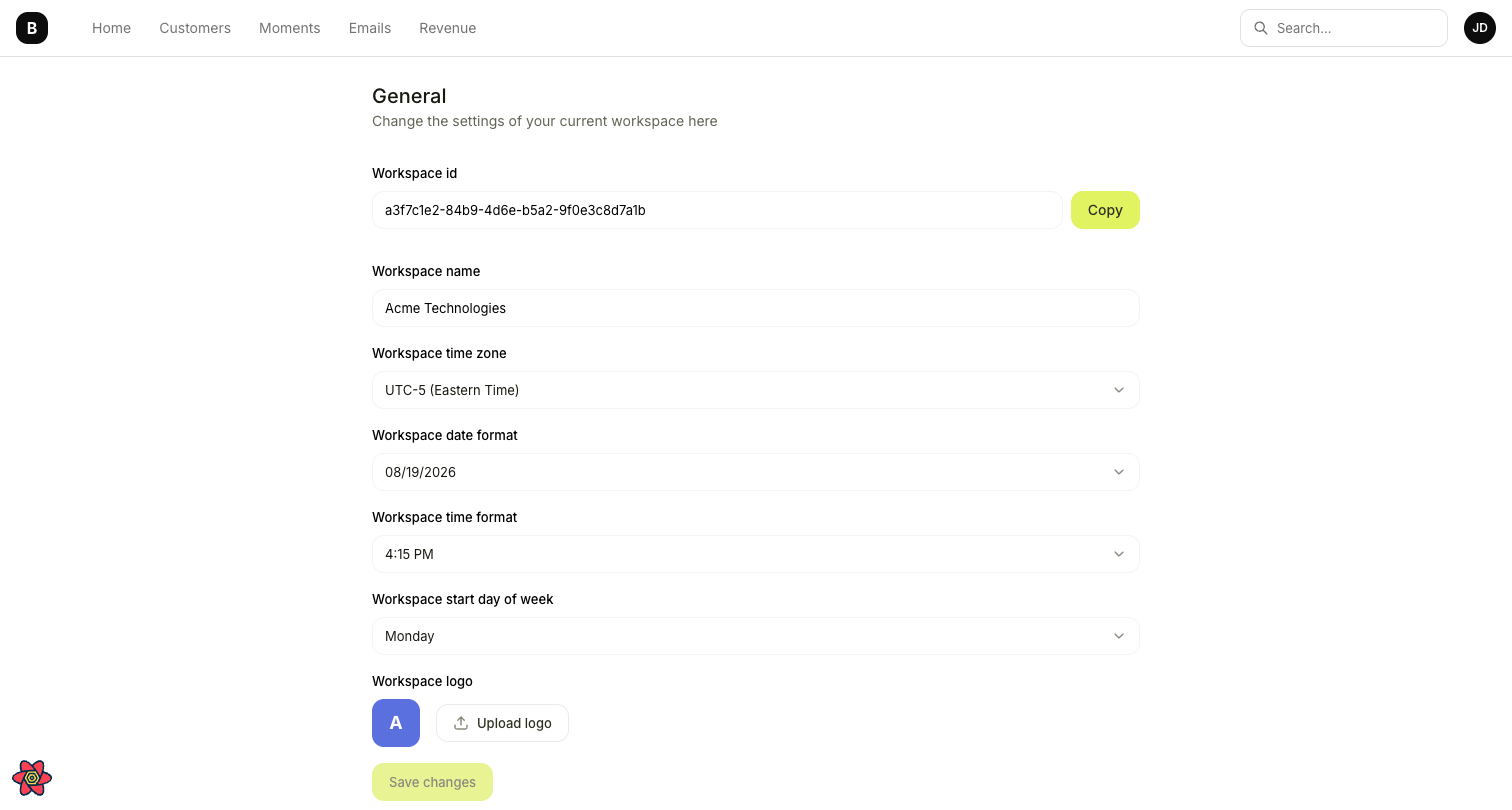 1. Go to **Settings** → **General**.
2. Update any of the following:
| Setting | Description |
| --------------------- | ------------------------------------------------------------- |
| **Workspace name** | The name of your workspace, visible to all team members |
| **Workspace logo** | Upload an image to brand your workspace |
| **Timezone** | The default timezone used across the workspace |
| **Date format** | Choose your preferred format (e.g., MM/DD/YYYY or DD/MM/YYYY) |
| **Time format** | Select 12-hour or 24-hour clock |
| **Start day of week** | Set to Monday, Sunday, or Saturday |
3. View your **Workspace ID** at the bottom of the page. Click it to copy — this is useful when working with the API or contacting support.
## Deleting a workspace
If you need to permanently delete your workspace, you can do so from the General settings page.
1. Go to **Settings** → **General**.
2. Scroll to the bottom of the page.
3. Click **Delete workspace**.
4. Confirm by typing your workspace name.
Deleting a workspace is permanent and cannot be undone. All data, integrations, and configurations will be lost. Make sure you have exported anything you need before proceeding.
1. Go to **Settings** → **General**.
2. Update any of the following:
| Setting | Description |
| --------------------- | ------------------------------------------------------------- |
| **Workspace name** | The name of your workspace, visible to all team members |
| **Workspace logo** | Upload an image to brand your workspace |
| **Timezone** | The default timezone used across the workspace |
| **Date format** | Choose your preferred format (e.g., MM/DD/YYYY or DD/MM/YYYY) |
| **Time format** | Select 12-hour or 24-hour clock |
| **Start day of week** | Set to Monday, Sunday, or Saturday |
3. View your **Workspace ID** at the bottom of the page. Click it to copy — this is useful when working with the API or contacting support.
## Deleting a workspace
If you need to permanently delete your workspace, you can do so from the General settings page.
1. Go to **Settings** → **General**.
2. Scroll to the bottom of the page.
3. Click **Delete workspace**.
4. Confirm by typing your workspace name.
Deleting a workspace is permanent and cannot be undone. All data, integrations, and configurations will be lost. Make sure you have exported anything you need before proceeding.