
Accessing settings
Open the profile menu at the bottom of the sidebar and select Settings.Profile settings
Your profile settings apply across all workspaces you belong to.- Go to Settings → Profile.
- Update any of the following:
- Profile photo — upload a new image to personalize your account.
- First name and Last name — set the name displayed to your team.
- Preferred timezone — choose the timezone used for displaying dates and times to you.
- Click Save to apply your changes.
Workspace settings
Workspace settings control how your workspace looks and behaves for everyone on your team.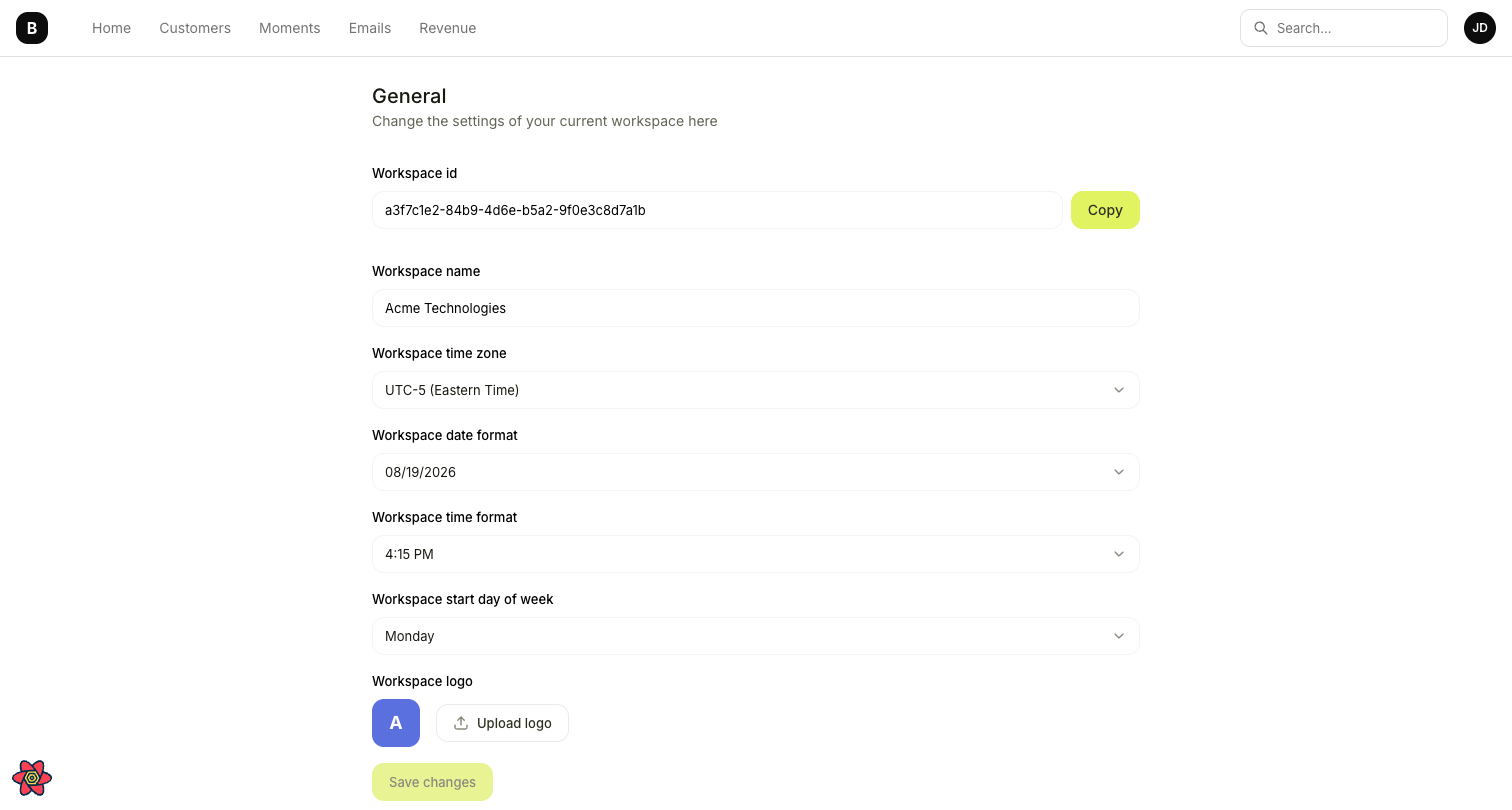
General workspace settings page
- Go to Settings → General.
- Update any of the following:
- View your Workspace ID at the bottom of the page. Click it to copy — this is useful when working with the API or contacting support.
Deleting a workspace
If you need to permanently delete your workspace, you can do so from the General settings page.- Go to Settings → General.
- Scroll to the bottom of the page.
- Click Delete workspace.
- Confirm by typing your workspace name.
Deleting a workspace is permanent and cannot be undone. All data, integrations, and configurations will be lost. Make sure you have exported anything you need before proceeding.