
Overview
The Revenue tab on an account profile gives you a complete financial picture of that customer. It brings together subscription data, invoice history, and individual payment transactions in one place, so you can quickly assess an account’s financial health. To access the Revenue tab, open any account profile and click Revenue.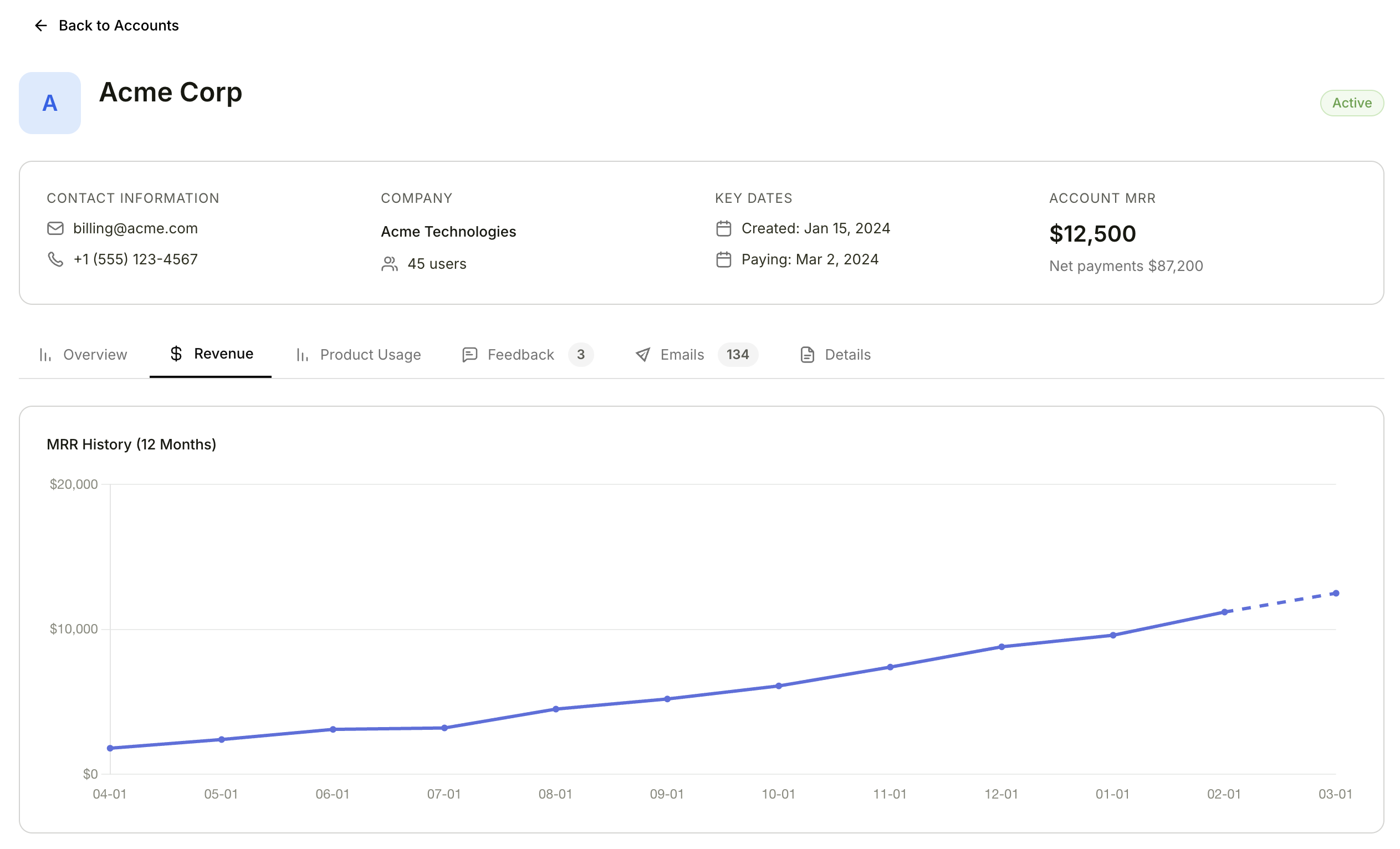
Revenue tab showing the MRR History chart and subscriptions table
All data on this tab comes from your connected payment provider (Stripe, PayPal, etc.). No manual data entry is required — everything syncs automatically as new payments and subscription changes occur.
MRR History
A 12-month line chart showing how the account’s Monthly Recurring Revenue has changed over time. Use this chart to quickly identify trends — whether the account is expanding, contracting, or holding steady.Subscriptions
A table of the account’s active subscriptions. This tells you exactly what the customer is paying for and when their next billing cycle occurs.Billing History
A paginated table of the account’s invoice history, showing 5 invoices per page.Transactions
A table of individual payment transactions for the account.How data flows into the Revenue tab
All financial data on this tab is synced automatically from your connected payment provider.1
Connect a payment provider
Link your Stripe, PayPal, or other supported payment provider in your workspace integrations settings.
2
Data syncs automatically
Subscriptions, invoices, and transactions are imported and kept up to date automatically.
3
View on any account
Open any account profile and navigate to the Revenue tab to see the full financial picture.