
What are moments?
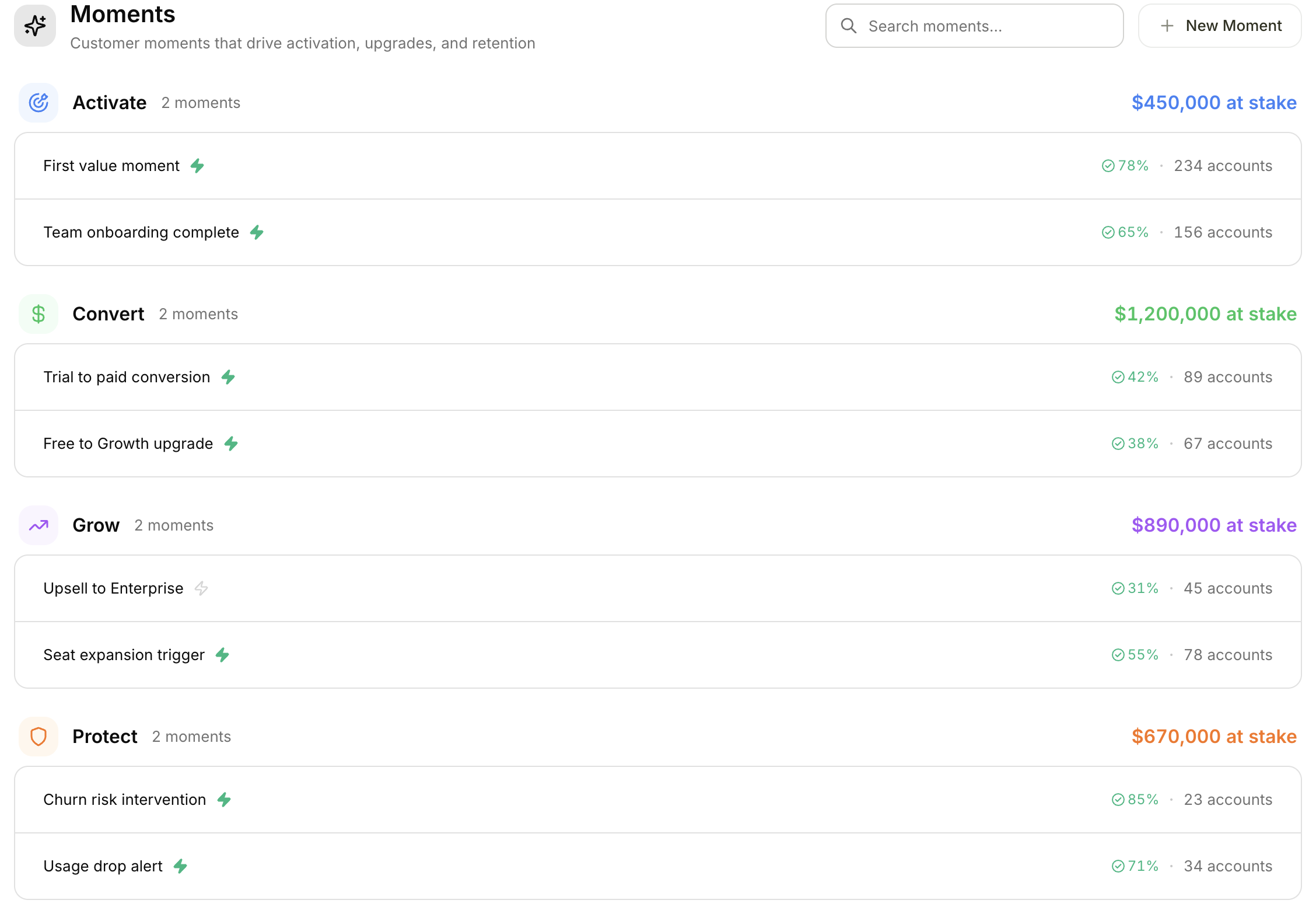
Moments list grouped by goal showing account counts and success percentages
Moment goals
Each moment is categorized by its goal, which describes what you are trying to achieve:Viewing moments
- Click Moments in the top navigation
- Browse moments grouped by goal
- Each moment shows its name, action status, exit outcomes (success vs. failed percentages), and the number of affected accounts
- Use the search bar to find specific moments
Creating a moment
1
Click New Moment
Open the Moments page and click the New Moment button.
2
Enter a name and description
Give your moment a clear name that describes what it does (e.g., “Trial expiration follow-up”).
3
Select a goal
Choose from Activate, Convert, Grow, Recover, or Other.
4
Choose what to track
Select the data source for this moment: Product usage, Revenue, or Product + Revenue.
Configuring moment rules
Moment rules define when a moment starts and when it ends. This determines which accounts enter the moment and how success or failure is measured.Start rule
The start rule defines when the moment begins for an account.- In the moment detail page, find the When this Moment starts section
- Choose an activity trigger (e.g., “Trial Ending Soon” or “Payment Failed”)
- Optionally add filters to narrow which accounts qualify
End rules
End rules define when the moment completes for an account.- Find the This Moment ends when section
- Add one or more end conditions
- Tag each end condition as a Success or Failed outcome
Example: A moment could end successfully when the customer upgrades to a paid plan, and end as failed if the trial expires without an upgrade. You can have multiple end conditions for each outcome type.
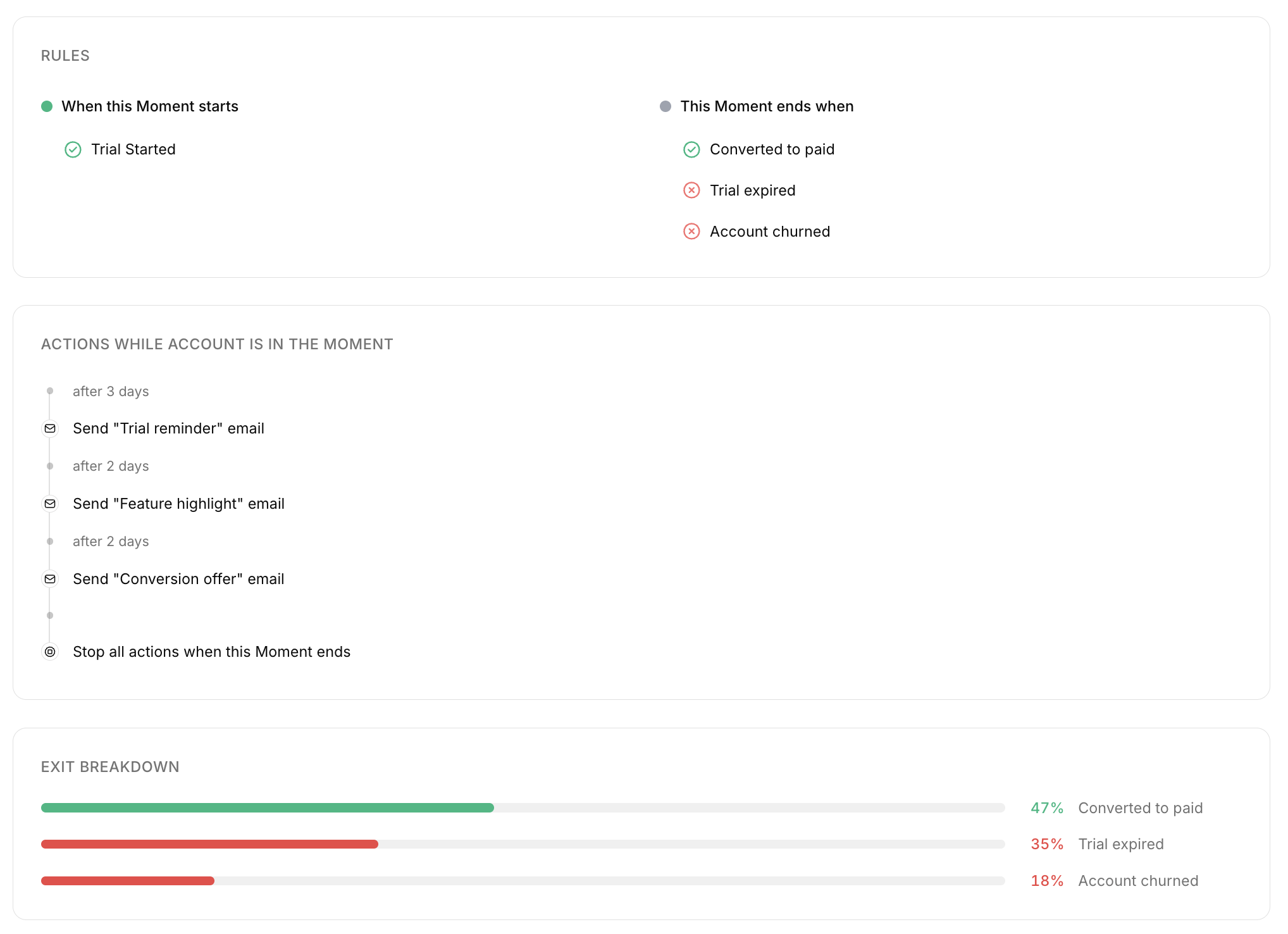
Moment detail page showing rules, action steps, and exit breakdown
Adding action steps
Steps define what happens during a moment. They are the automated actions that run when an account enters the moment.- Click Add Step in the Steps section
- Choose an action type from the table below
- Configure the action details (template, recipient, channel, etc.)
- Set an optional delay before the action executes (minutes, hours, or days)
Action types
Managing moments
Once a moment is created, you can manage it in several ways:- Enable or disable actions — Toggle the actions switch to start or pause a moment’s automated actions
- Duplicate — Create a copy of a moment with all its rules and steps, which is useful for creating variations
- Delete — Permanently remove a moment
Viewing affected accounts
Click the account count on any moment to see which accounts are currently in that moment. This helps you understand how many customers are being engaged by each playbook and monitor progress in real time.Related features
- Emails are used as action steps within moments. Create email templates first, then add them as steps in your moment workflow.
- Revenue Stages and Product Stages provide the account context that powers moment rules and triggers.
- Slack, Attio, and Webhooks can be used as action types within moment steps.