
What it does
Payment Import lets you bring payment data into Bigdelta when your billing provider does not have a direct integration. You can manually upload your customer, subscription, and transaction data so it works alongside data from other connected providers.How to set up
1
Go to Settings then Integrations
Find the Payment Import card in the payment providers section.
2
Click Set Up
The setup flow will guide you through the import process.
3
Configure your import profile
Define how your data maps to Bigdelta’s data model. This includes mapping fields for customers, subscriptions, invoices, and transactions.
4
Upload your data
Provide your payment data following the configured mapping. Bigdelta will process and import the records.
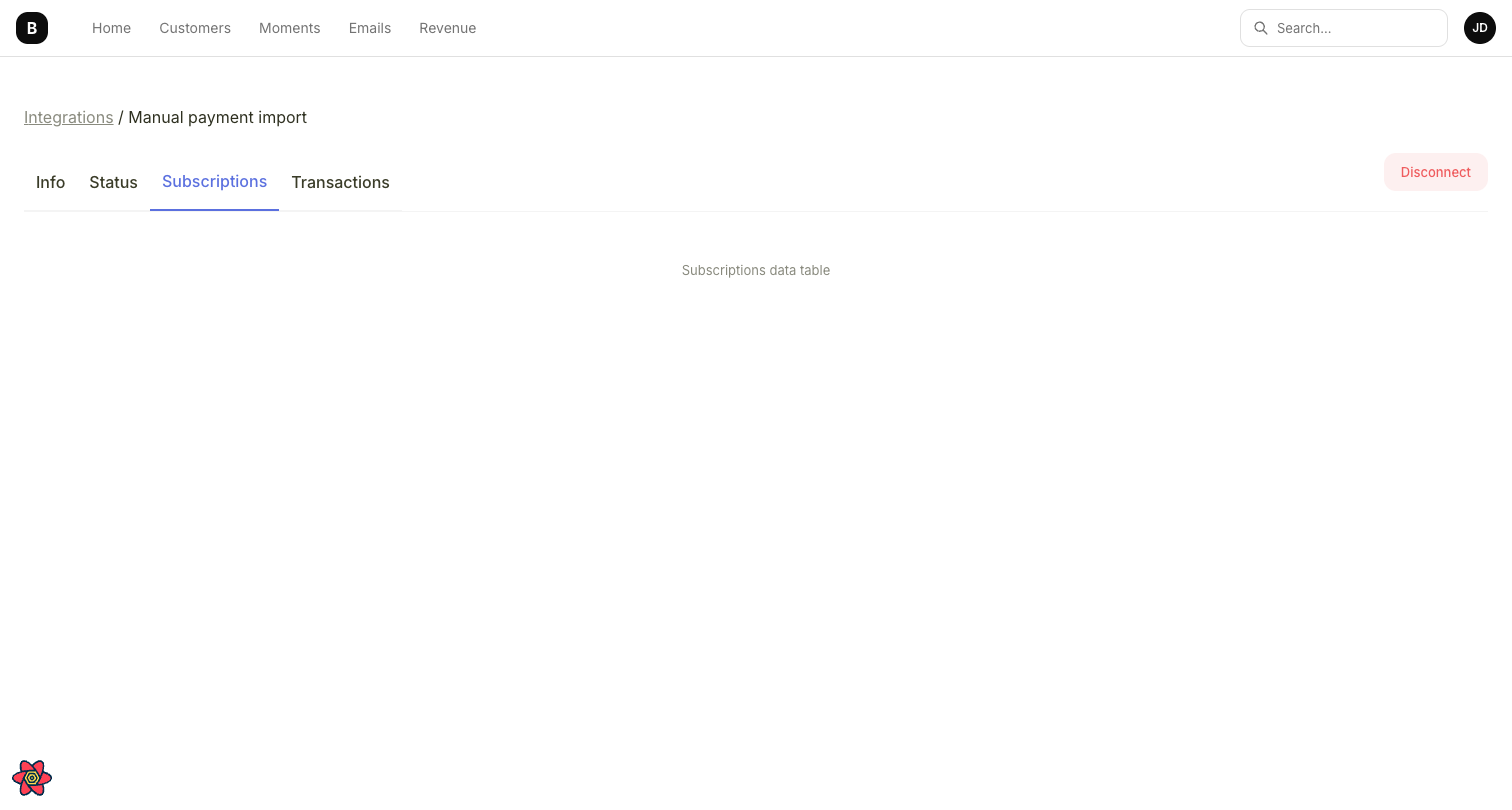
Manual payment import page showing Subscriptions tab
What data gets imported
When to use Payment Import
- Your billing provider is not listed in the available integrations
- You use a custom or in-house billing system
- You need to import historical payment data from a legacy system
Unlike direct integrations, Payment Import does not sync automatically. You will need to import data when you want to update your records.